How to scan a QR code on a Samsung Galaxy phone
Scan QR codes on any Samsung Galaxy phone or tablet with the Camera app, the Scan QR code tile in Quick settings, or from a photo in Gallery.
Add LearnQRCode as a preferred source on Google
Quick answer
- Open Camera in Photo mode and point it at the code, or tap Scan QR code in Quick settings.
- If the camera ignores codes, turn on Scan QR codes in Camera settings.
- For a screenshot or photo, open it in Gallery and press and hold the code, or use Google Lens.
Scan on a Samsung Galaxy
- 1Open Camera, keep PHOTO selected
- 2Turn on Scan QR codesCamera settings, if nothing happens
- 3Or tap Scan QR codeTwo-finger swipe down to Quick settings
- 4Tap the link that appears
In this guide
Galaxy phones and tablets have two built-in scanners (the Camera app and the Scan QR code tile) plus ways to read codes from photos. Samsung notes labels vary by model, software version and country.
Method 1: Scan with the Camera app
- Open Camera.
- Make sure PHOTO is selected.
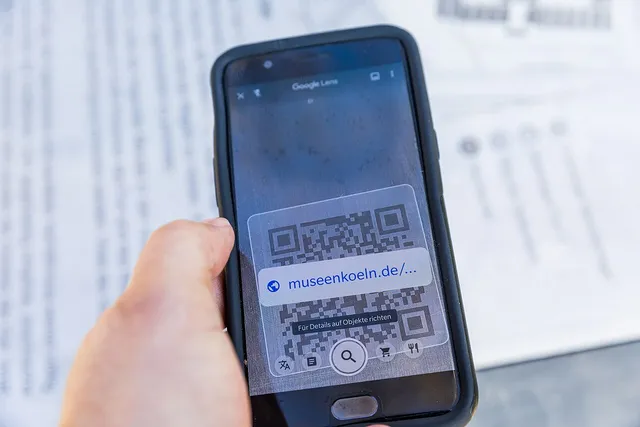
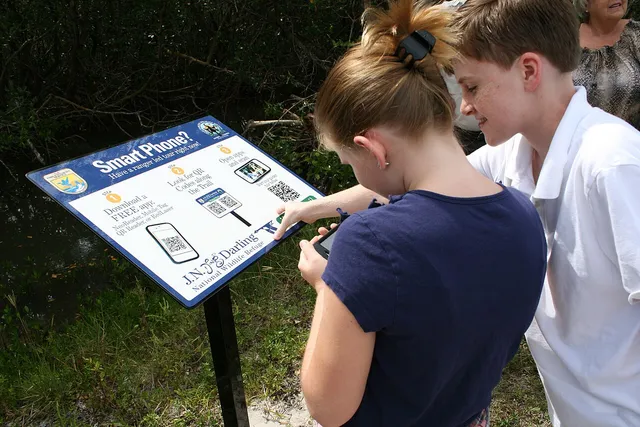
- Point at the code so it’s fully in the viewfinder. No need to press the shutter.
- Tap the notification or link that appears.
If nothing happens: turn on Scan QR codes
- In Camera, tap the Settings icon.
- Turn on Scan QR codes.
- Try again.
Method 2: The Scan QR code tile in Quick settings
Samsung describes this as the feature designed specifically for QR codes.
- With two fingers, swipe down from the top to open the full Quick settings panel.
- Tap Scan QR code.
- Focus on the code; it scans automatically.
The window has a flashlight button and a shortcut to Gallery for saved pictures. Can’t find the tile? Swipe to the next page of Quick settings or edit the panel to add it.
Method 3: From a screenshot or photo
The camera can’t see your own screen, so:
- Save the code as an image, or take a screenshot.
- Open it in Gallery.
- Press and hold the code until a notification appears, then tap it.
On some models, Samsung also describes tapping Bixby Vision in Gallery; it isn’t on every device. Google Lens works too: open it from the Google app or Chrome and pick the screenshot. See our screenshot scanning guide.
Apps that open the scanner for you
Some apps open the camera to scan a QR code as part of setup. Samsung’s example is Smart Switch, which can connect a new Galaxy to your old phone using a QR code.
Which method should you use?
| Situation | Best method |
|---|---|
| A printed code in front of you | Camera app, or the Scan QR code tile |
| A dark restaurant or venue | Scan QR code tile (it has a flashlight) |
| A code in a screenshot, email or chat on your phone | Gallery (press and hold), or Google Lens |
| The camera shows nothing at all | Turn on Scan QR codes in Camera settings, or use the tile |
Tips when it won’t scan
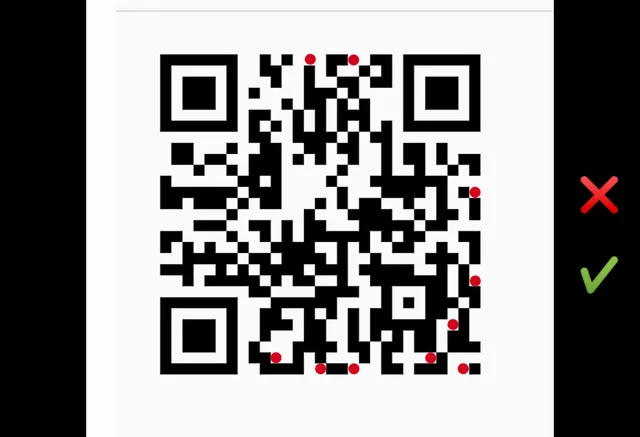
- Image quality matters: blurry, low-resolution or partly hidden codes may fail.
- Adjust distance and tap the code on screen to focus.
- Add light with the flashlight in the Scan QR code window.
- Clean the lens.
- Check your connection: opening a link needs data or Wi-Fi.
Still stuck? See our QR code not scanning checklist.
Stay safe when scanning
The scanner shows the link first, so read the web address before opening it. Be wary of codes stuck over other codes or sent by strangers. See QR code scams.
Related guides
- How to scan a QR code on Android (Pixel and other brands)
- How to scan a QR code on any device
- eSIM QR codes, including Samsung’s SIM manager steps
Frequently asked questions
- How do I scan a QR code on my Samsung phone?
- Open the Camera app in Photo mode and point it at the code, or swipe down with two fingers and tap Scan QR code in the Quick settings panel. A link appears that you can tap to open.
- Why is my Samsung camera not scanning QR codes?
- The Scan QR codes switch in Camera settings may be off. Turn it on, then make sure the whole code is in view, in focus and well lit. If it still won't work, try the Scan QR code tile in Quick settings.
- How do I scan a QR code that's on my Samsung screen?
- Save it as an image or take a screenshot, open it in the Gallery app, and press and hold the QR code until a notification appears. You can also open the image with Google Lens.
- Where is the QR scanner on Samsung Quick settings?
- Swipe down from the top of the screen with two fingers to open the full Quick settings panel and look for the Scan QR code tile. If it isn't there, edit the panel and add it.