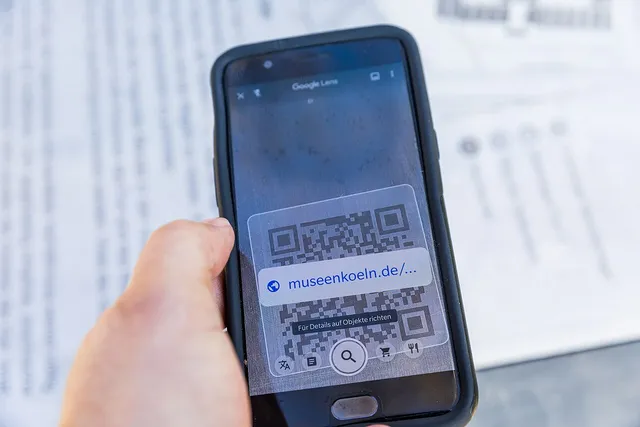
Scanning
How to scan a QR code on any phone, tablet or computer
The quickest way to scan a QR code on iPhone, Android, Samsung, Windows, Mac and Chromebook, plus how to read codes in screenshots and fix scan failures.
Read any QR code on iPhone, Android, a computer, a screenshot or a photo, and fix codes that won’t scan.
The quickest way to scan a QR code on iPhone, Android, Samsung, Windows, Mac and Chromebook, plus how to read codes in screenshots and fix scan failures.
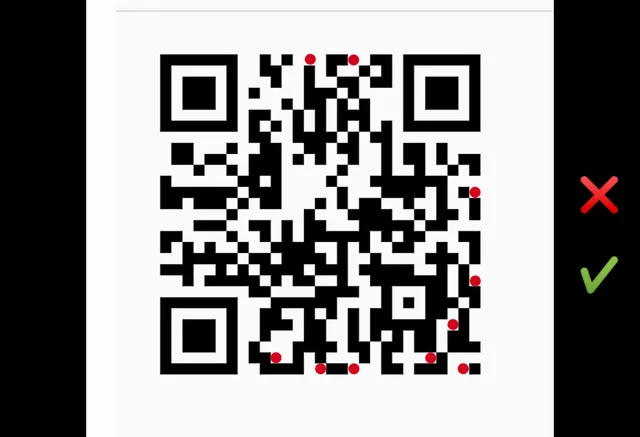
Why your phone won't scan a QR code and how to fix it: camera settings, light, distance, glare, damaged codes and design problems, in a quick checklist.
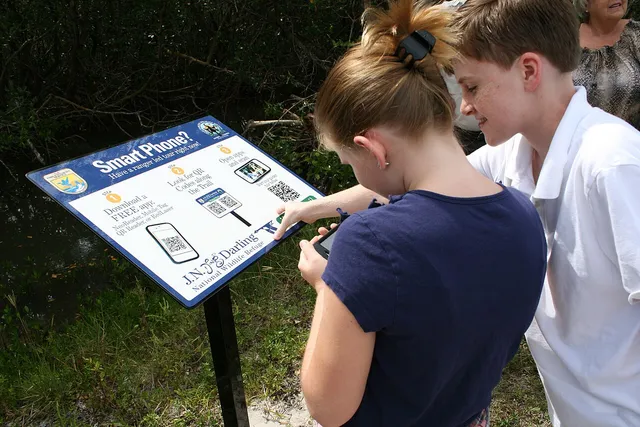
Four built-in ways to scan QR codes on Android: the Camera app, the Quick Settings scanner, Google Lens and Samsung's tools. No extra app required.
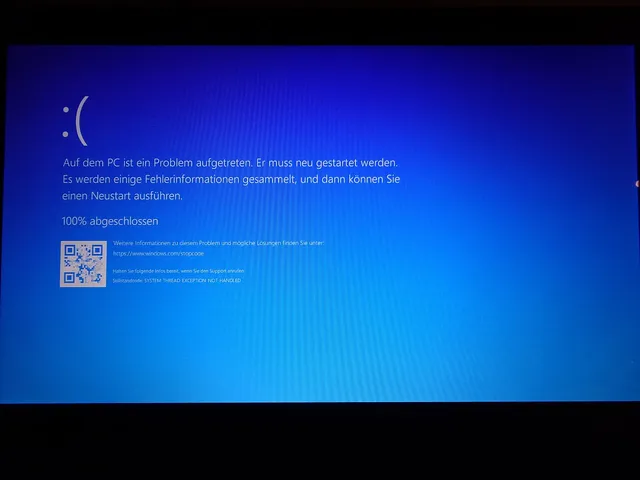
Read a QR code that's already on your phone or computer: step-by-step methods for iPhone, Android, Samsung, Windows, Mac and Chromebook.

Scan any QR code with your iPhone or iPad camera or the Code Scanner in Control Center, plus how to read a code that's already on your screen.
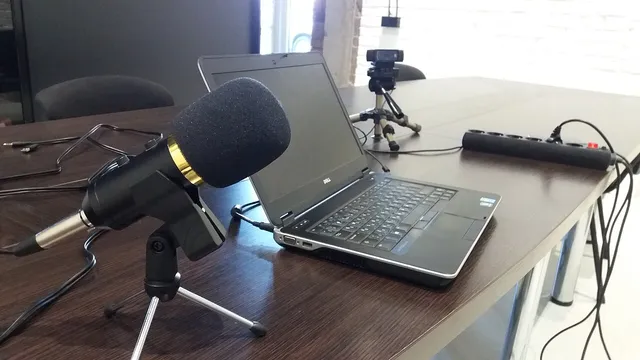
Scan QR codes on Windows, Mac and Chromebook: use your webcam, read a code on your screen with Google Lens, or let your phone do the work.
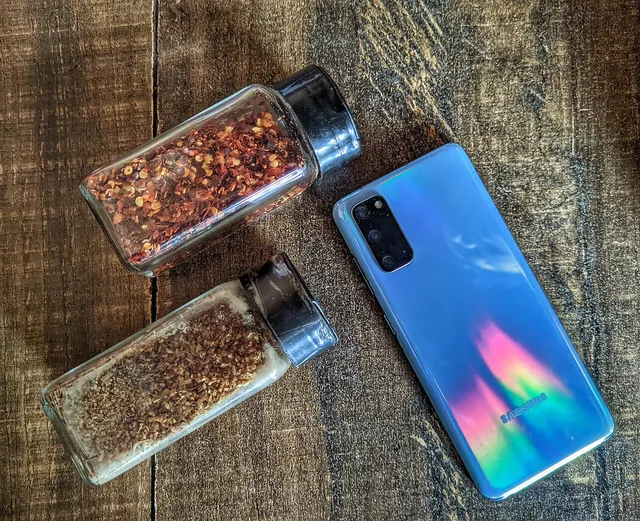
Scan QR codes on any Samsung Galaxy phone or tablet with the Camera app, the Scan QR code tile in Quick settings, or from a photo in Gallery.