How to scan a QR code on any phone, tablet or computer
The quickest way to scan a QR code on iPhone, Android, Samsung, Windows, Mac and Chromebook, plus how to read codes in screenshots and fix scan failures.
Add LearnQRCode as a preferred source on Google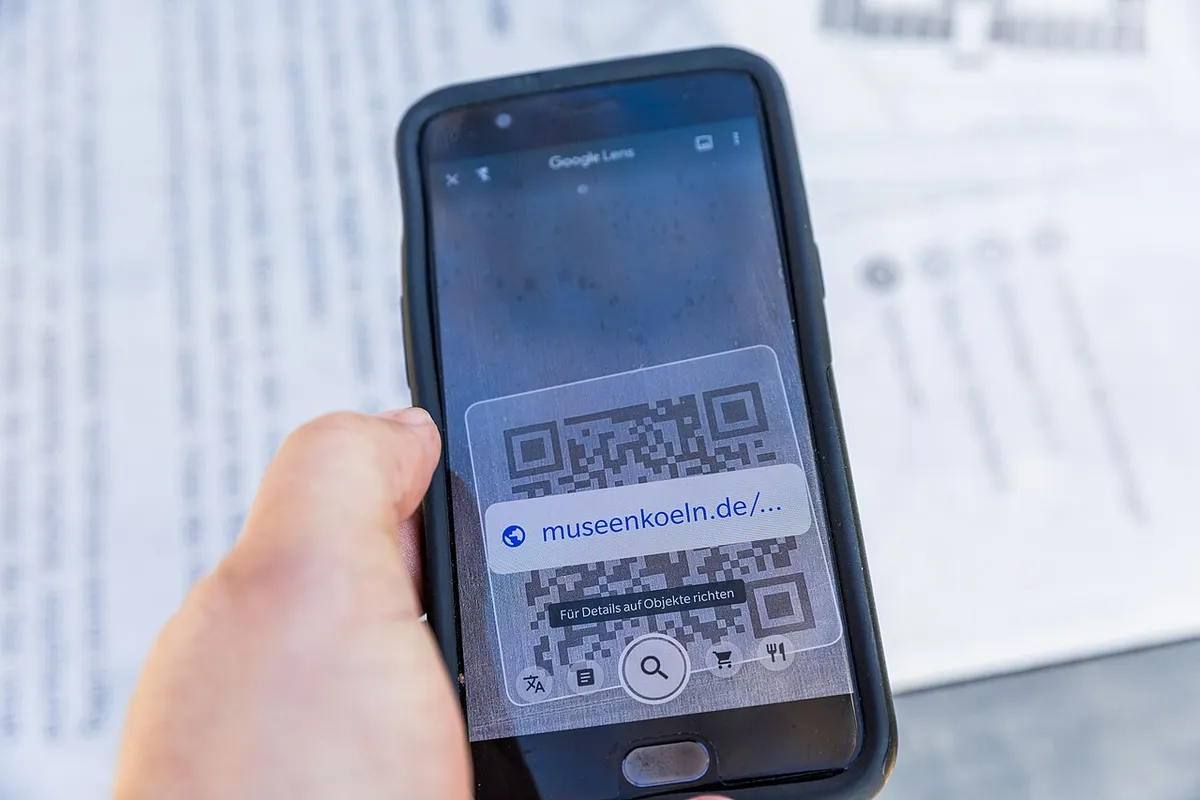
Quick answer
- Open the Camera app, point it at the QR code and tap the link that appears. No photo or extra app needed.
- For a code already on your screen, use Google Lens on the image instead.
- Check the web address in the preview before you open it.
Scan any QR code in 3 steps
- 1Open your Camera appNormal photo mode, no shutter needed
- 2Point it at the codeFit the whole code and its border
- 3Check the web addressMake sure it's what you expect
- 4Tap the link that pops up
In this guide
Almost every recent phone can scan a QR code with the camera app it already has. Here is the quick method, then the shortcut for each device.
The 3-step method that works on most phones
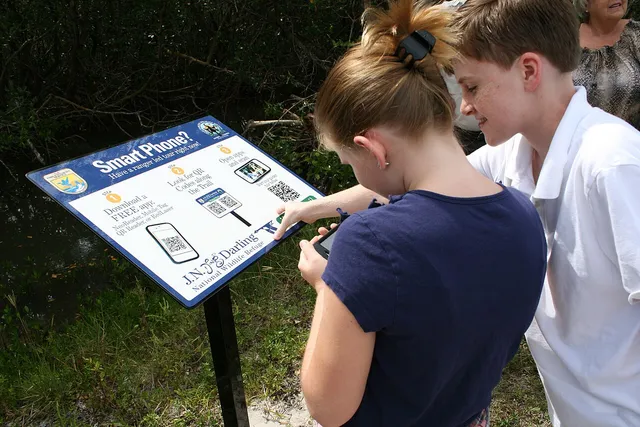
- Open your Camera app in normal photo mode.
- Point it at the code. Fit the whole code on screen, including its blank border. You don’t need to press the shutter.
- Tap the link that pops up, after checking the web address is what you expect.
If nothing pops up, use your device’s method below.
Scanning by device
| Device | Quickest built-in method | Detailed guide |
|---|---|---|
| iPhone / iPad | Camera app, or Scan Code in Control Center | iPhone and iPad guide |
| Google Pixel | Camera app, or Scan QR code in Quick Settings | Android guide |
| Samsung Galaxy | Camera app (with Scan QR codes on), or the Quick settings tile | Android guide |
| Other Android | Camera app, Quick Settings tile, or Google Lens | Android guide |
| Windows PC | Camera app in Barcode mode | Computer guide |
| Chromebook | Camera app, Scan > QR code | Computer guide |
| Mac | Use your phone, or Google Lens in Chrome for on-screen codes | Computer guide |
| Screenshot or photo | Google Lens, or Bixby Vision on Samsung | Screenshot guide |
iPhone and iPad
Open Camera and tap the yellow link at the bottom. For a scanner with a flashlight button, open Control Center and tap Scan Code (called Code Scanner on older iOS versions); add it from the Control Center gallery if it’s missing. Full steps: how to scan a QR code on iPhone and iPad.
Android phones
Pixel and Samsung cameras recognize QR codes automatically. Many recent phones also have a Scan QR code tile in Quick Settings: swipe down and tap it. Otherwise, open Google Lens from the Google app or Chrome. Full steps: how to scan a QR code on Android.
Computers
On Windows, open Camera, select Barcode and hold the code up to the webcam. On a Chromebook, open Camera and choose Scan, then QR code. For a code on your screen, right-click it in Chrome and choose Search with Google Lens. Full steps: how to scan a QR code on a computer.
Scanning a QR code that’s already on your screen
Your camera can’t see its own screen, so for a screenshot or a code someone sent you:
- Open the image in Google Photos and tap Lens, or use the Lens icon in the Google app.
- On Samsung Galaxy phones, open it in Gallery and tap Bixby Vision.
- Or show the image on another device and scan it.
Details: scanning a QR code from a screenshot or photo.
What happens after you scan?
Your phone reads the code and offers a matching action:
- Website link: opens the page.
- Wi-Fi details: offers to join the network.
- Contact card: offers to save the contact.
- Phone number, email or text message: offers to call, email or message.
- Plain text: shows the text.
Nothing happens until you tap the prompt. Curious how the squares hold that information? Read how QR codes work.
How to scan safely
Scanning itself doesn’t harm your phone; the risk is the link. Scammers like QR codes because the destination is hidden until you scan.
- Read the address before tapping. Check the domain is the one you expect and spelled correctly.
- Look for stickers. A code stuck on top of another code on a parking meter, poster or table is a red flag.
- Be wary of urgency. Unexpected emails, texts or letters demanding you pay or log in “now” are a classic scam.
- Don’t hand over passwords or card details on a page reached from a code you didn’t expect.
Learn the warning signs in our guide to QR code scams.
When the code won’t scan
- Move back so the whole code and its border fit on screen.
- Add light and tilt to remove glare.
- Wipe the camera lens.
- Try another method (Control Center, Quick Settings tile or Google Lens).
- Update your phone’s software.
If the code fails on more than one phone, the code itself is probably too small, low-contrast or damaged. Our QR code troubleshooting checklist explains how to tell the difference.
Frequently asked questions
- Do I need an app to scan a QR code?
- Usually not. iPhones, iPads, Pixel and Samsung phones, Windows PCs and Chromebooks all have QR scanning built in. Google Lens covers most other Android phones.
- Is it safe to scan QR codes?
- Scanning only reads the code; the risk comes from the link it opens. Check the web address before tapping, and be cautious with codes in unexpected messages or codes stuck over other codes.
- Can I scan a QR code from a picture on my phone?
- Yes. Open the image in Google Photos and tap Lens, use Google Lens in the Google app, or use Bixby Vision in the Gallery app on Samsung phones.
- Why isn't my phone scanning the QR code?
- Common causes are being too close, poor light, glare, a dirty lens or QR detection being switched off. If no phone can read it, the code itself is likely faulty.