QR code not scanning? 12 fixes that actually work
Why your phone won't scan a QR code and how to fix it: camera settings, light, distance, glare, damaged codes and design problems, in a quick checklist.
Add LearnQRCode as a preferred source on Google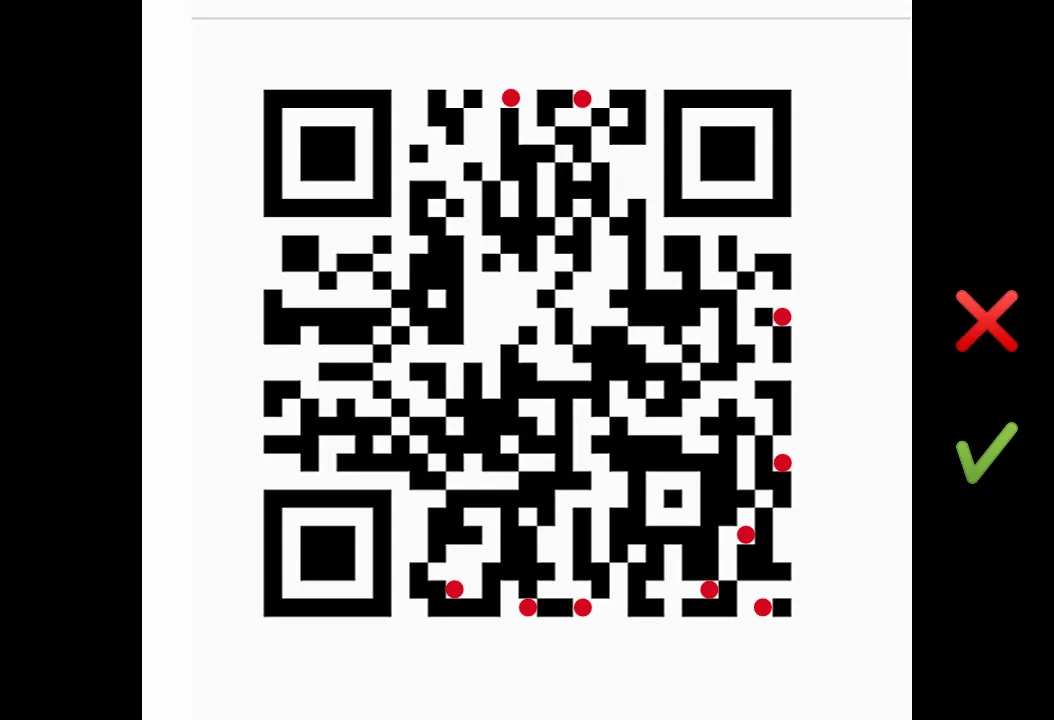
Quick answer
- Most failures are distance, light, glare or a dirty lens: fit the whole code and its border on screen, add light, wipe the lens.
- If the camera doesn't react, try Scan Code on iPhone, or the Quick Settings tile or Google Lens on Android.
- If no phone can scan it, the code is the problem: too small, low contrast, damaged or a dead link.
Fix a code that won't scan
- 1Fit the whole code and borderMove back, then closer slowly
- 2Add light, remove glare
- 3Make sure QR detection is on
- 4Fails on two phones? It's the code
In this guide
First question: is it your phone or the code? Work through these in order; the first fixes take seconds.
Step 1: Fix the basics (phone side)
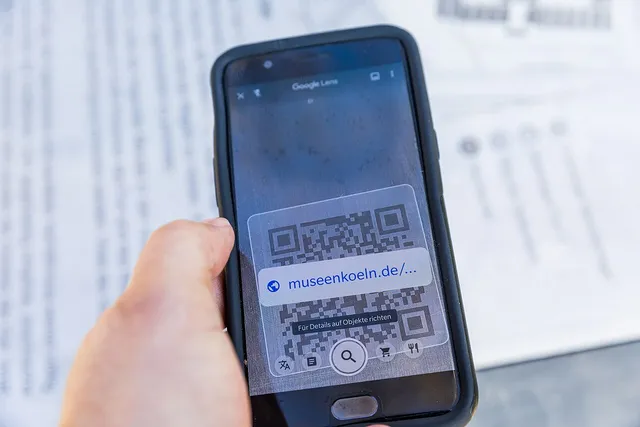
- Get the whole code in view. Scanners need all three corner squares plus the blank margin (the quiet zone). Move back until it fits, then closer if it’s small.
- Hold steady and wait a second, with the code square to the camera.
- Add light. On iPhone, Scan Code in Control Center has a flashlight; on Android, turn on the flashlight from Quick Settings.
- Kill the glare. Tilt glossy menus, laminated cards or screens until the reflection moves off; raise screen brightness for on-screen codes.
- Clean the lens. A smudge can blur fine detail; Google’s Pixel help suggests the same.
Step 2: Check your phone’s settings
6. Make sure QR detection is on
| Phone | What to check |
|---|---|
| iPhone / iPad | QR scanning is built into the Camera app. If it doesn’t respond, try the Scan Code control in Control Center (add it from the Control Center gallery if it’s missing). |
| Google Pixel | Camera app > Settings > More settings > Camera scan suggestions must be on. |
| Samsung Galaxy | Camera app > Settings > Scan QR codes must be on. |
| Other Android | Look for a QR, Lens or smart-scan option in camera settings, or use Google Lens. |
| Windows | In the Camera app, select the Barcode button first. |
7. Try a different scanner
On Android, switch between the camera, the Scan QR code tile and Google Lens. On iPhone, switch between Camera and Scan Code. See our iPhone and Android guides.
8. Update your software
Install system updates and update the Google app or camera app.
Step 3: Is it the code?
If it fails on two or more phones, the code is the issue.
- 9. Too small for the distance. A poster code across a room must be far bigger than a business card code. Making one? See QR code size.
- 10. Poor contrast or unusual colors. Pale colors, busy backgrounds or light-on-dark codes confuse some scanners. See QR code colors.
- 11. Damage, blur or a missing border. Scratches, smudges, low-resolution printing, an oversized logo or graphics eating into the quiet zone. Error correction tolerates some damage, not unlimited.
- 12. The link is dead, not the code. The phone reads it but the page won’t load: the short link or service may be switched off or the site moved. Contact the publisher. Made it yourself? Read do QR codes expire?
Special cases
- On your own phone screen: use Google Lens on the saved image, or another screen. See how to scan a QR code from a screenshot.
- On a computer screen: right-click the image in Chrome and choose Search with Google Lens, or see scanning QR codes on a computer.
- Behind glass or curved: get square to the code from a little further back; rotate bottles or cups so the code faces you.
When to give up and ask
After two phones, look for a printed web address or ask staff. Don’t hunt for another code stuck nearby: a code placed over another one can be a scam. See our QR code scam guide.
Quick checklist
- Whole code plus border visible
- Phone held steady, code square to camera
- Enough light
- No glare
- Clean lens
- QR detection turned on
- Tried another scanner method
- Software updated
- Code big enough for the distance
- Good contrast
- Code undamaged with a clear border
- Link behind the code still works
Frequently asked questions
- Why is my iPhone not scanning QR codes?
- Try the Scan Code control in Control Center, which has a flashlight button, and make sure the whole code is in view. Clean the lens, reduce glare, and update iOS. If other phones can't read the code either, the code itself is the problem.
- How do I enable my phone to scan QR codes?
- On iPhone, QR scanning is built into the Camera app and the Scan Code control. On Pixel, turn on Camera scan suggestions in the camera's settings. On Samsung, turn on Scan QR codes in Camera settings or use the Scan QR code tile in Quick settings.
- What do I do if a QR code is too small to scan?
- Move the phone closer slowly so the camera can focus, use zoom if your camera allows it, and add light. If it's a screenshot, zoom in on the original before capturing it.
- Why does a QR code scan but the page doesn't open?
- The code was read correctly but the link behind it may be broken, expired or blocked. Check your internet connection, then contact whoever published the code.