eSIM QR code: how to get one and scan it on iPhone or Android
Where your eSIM QR code comes from, how to scan it on iPhone, Pixel and Samsung, what to do if it's in an email on the same phone, and why not to delete it.
Add LearnQRCode as a preferred source on Google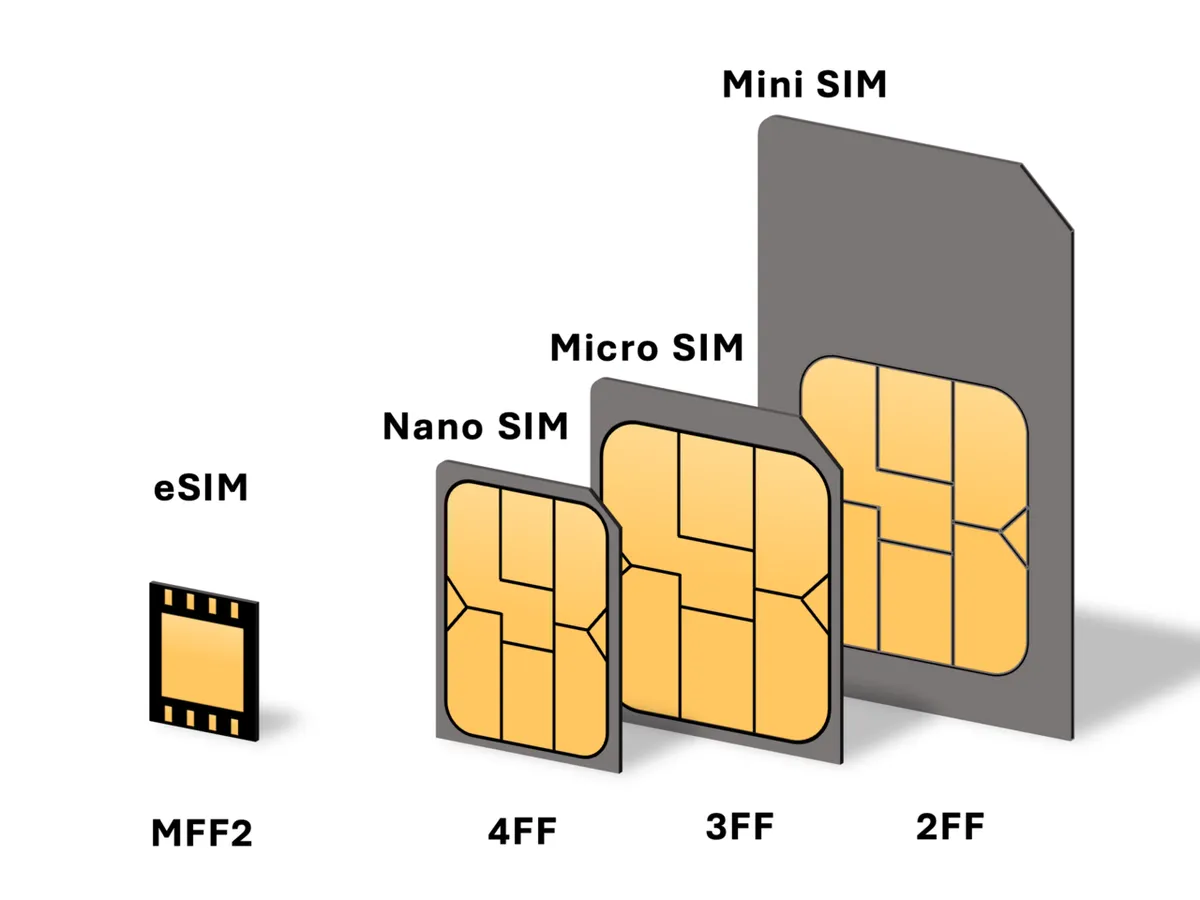
Quick answer
- Your eSIM QR code comes from your carrier: on the order screen, in an email, or from support.
- iPhone: scan it with the Camera app and tap Cellular Plan Detected, or tap Use QR code during setup.
- Android: add an eSIM in Settings (Pixel: Network & internet > SIMs > Add SIM) and scan when asked. Treat the code like a password.
Add an eSIM on iPhone with a QR code
- 1Connect to Wi-Fi first
- 2Scan the code with CameraThe code comes from your carrier
- 3Tap Cellular Plan Detected
- 4Tap Continue, then Add Cellular Plan
In this guide
An eSIM is a digital SIM built into your phone. Instead of a plastic card, your carrier gives you a way to download your plan, very often a QR code. Steps below follow Apple, Google and Samsung’s published instructions.
Where do you get an eSIM QR code?
Only your carrier (or eSIM provider) can issue it, because it holds the details your phone needs to download your plan:
- On screen when you order. T-Mobile’s prepaid activation, for example, shows the code on the Success screen and suggests a screenshot if you can’t scan it right away.
- In an email. Carriers often send the code, or download instructions, in a welcome email.
- From customer support, if your phone asks for a code and you don’t have one.
Depending on the carrier, your eSIM may instead arrive automatically (Apple calls this eSIM Carrier Activation), through a carrier app, a link, or manual details.
How to scan an eSIM QR code on iPhone
You need an iPhone XS, XS Max, XR or later and a carrier that supports eSIM. Connect to Wi-Fi first.
During setup of a new iPhone
- Turn on and set up your iPhone.
- On the Set Up Cellular screen, tap Use QR code.
- Follow the on-screen instructions.
After setup
- Open the Camera app and scan the QR code.
- Tap the Cellular Plan Detected notification.
- Tap Continue at the bottom of the screen.
- Tap Add Cellular Plan.
- If asked for a confirmation code, enter the number your carrier gave you.
When the QR code is on the same iPhone
On iOS 17.4 or later, if the code is in an email app or browser, tap and hold it, then tap Add eSIM. If your carrier sent a link instead, tap it, then tap Allow when the Activate New eSIM notification appears. See also how to scan a QR code from a screenshot.
How to scan an eSIM QR code on Android
Menu names differ between manufacturers and versions; follow your phone’s prompts.
Google Pixel
- Open Settings.
- Tap Network & internet > SIMs > Add SIM > Set up an eSIM.
- Follow the instructions; scan your carrier’s QR code when setup asks for it.
Google notes that a carrier-bought phone usually gets its eSIM from the carrier, and if your SIM isn’t detected during setup you may need to activate through your carrier first.
Samsung Galaxy
- Open Settings > Connections > SIM manager.
- Tap Add eSIM and choose to scan a carrier QR code.
- Scan the code and let the eSIM profile download.
- Samsung says to restart the device to apply the profile.
Screens vary by carrier, software and model, and some carriers don’t support eSIM on every Galaxy. See also how to scan QR codes on a Samsung phone.
If the eSIM QR code won’t work
- Check Wi-Fi. Activation usually needs an internet connection.
- Make sure the phone is unlocked if bought from a different carrier.
- Scan from a clear, bright screen or sharp printout. See our QR code not scanning checklist.
- Ask the carrier for a new code if it was already used or the eSIM was removed.
Keep your eSIM QR code safe
An eSIM QR code is effectively the key to your phone line.
- Don’t post or forward it. Treat it like a password until installed.
- Only use codes from your carrier. Others could install someone else’s plan or be a scam. See QR code scams.
- Don’t erase an installed eSIM to “fix” a problem. Apple warns against it unless your carrier tells you to, because you’ll need a new eSIM from them.
Frequently asked questions
- How do I get a QR code for my eSIM?
- From your carrier. Many show it on screen when you order a plan and send it by email as well. If your phone asks for a QR code and you don't have one, contact your carrier. T-Mobile's prepaid activation, for example, shows the code on screen and sends a welcome email you can use to download the eSIM later.
- How do I scan an eSIM QR code that's on my own phone?
- On an iPhone with iOS 17.4 or later, tap and hold the QR code in your email app or browser, then tap Add eSIM. Otherwise, open the code on another screen (a computer or second device) and scan it with your phone.
- Can I reuse an eSIM QR code?
- Don't count on it. Apple says that if you erase an eSIM you'll need to contact your carrier to get a new one, so keep the plan installed and ask your carrier for a fresh code if you need to set it up again.
- Do I need Wi-Fi to activate an eSIM with a QR code?
- Usually yes. Apple says to connect your iPhone to Wi-Fi or a hotspot first, although in some countries eSIM-only iPhones can activate without Wi-Fi.