Apple Pay QR code: what it is and how to scan it to pay
Apple Pay has no personal QR code to share, but you can scan a checkout code on a Mac, PC or non-Safari browser to pay with your iPhone. Here's how.
Add LearnQRCode as a preferred source on Google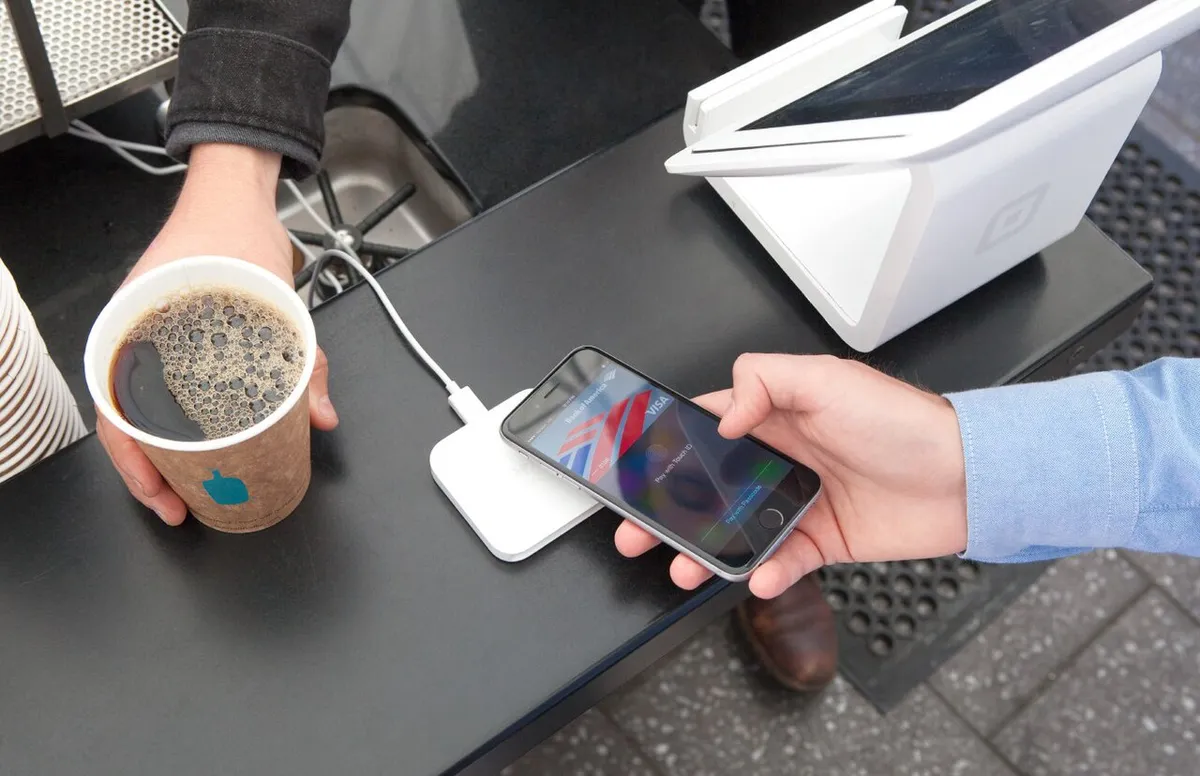
Quick answer
- Apple Pay doesn't give you a personal QR code to receive money. The QR codes you'll see are checkout codes on websites.
- On a PC or a non-Safari browser, choose Apple Pay at checkout, scan the code with your iPhone or iPad camera, and confirm with Face ID, Touch ID or your passcode.
- Wallet tickets and boarding passes show QR codes too, but for entry, not paying.
Pay with Apple Pay by scanning a code
- 1Choose Apple Pay at checkoutA code appears on screen
- 2Scan it with your iPhone Camera
- 3Double-click the side buttonConfirm with Face ID, Touch ID or passcode
- 4Wait for Done and a checkmark
In this guide
People search for an “Apple Pay QR code” expecting something like a Venmo or PayPal code to get paid. Apple Pay doesn’t work that way: the QR codes Apple documents are checkout codes that let you approve a website payment on your iPhone or iPad.
Does Apple Pay have a QR code?
| What you see | What it does | Covered by Apple’s docs? |
|---|---|---|
| A code at online checkout after choosing Apple Pay | Lets you pay on a Mac, PC or non-Safari browser using your iPhone or iPad | Yes |
| A QR code or barcode on a ticket or boarding pass in Apple Wallet | Gets you through a gate or door; not a payment | Yes |
| A personal “Apple Pay QR code” to receive money | Doesn’t exist in Apple’s documentation | No |
To get paid by QR code, see PayPal QR codes or Venmo QR codes.
How to pay with Apple Pay by scanning a code
Apple calls this “using Apple Pay by scanning a code”. It’s for devices that can’t complete Apple Pay themselves, such as a Windows PC or Chrome or Firefox.
- At checkout, tap the Apple Pay button or choose Apple Pay. A code appears on the screen.
- On your iPhone or iPad, open the Camera and scan the code.
- If asked, enter your billing, shipping and contact information.
- To confirm, double-click the side button, then use Face ID, Touch ID or your passcode.
- When the payment goes through, you’ll see Done and a checkmark.
What you need
- An iPhone or iPad with Apple Pay set up. Apple’s merchant documentation lists iOS 18 or later (or iPadOS 18 or later) for this feature.
- A participating merchant that supports Apple Pay in third-party browsers.
- A supported market. It isn’t available everywhere; in China mainland, Apple Pay with a third-party browser isn’t available.
If the code won’t scan, see why won’t my phone scan a QR code.
Choosing a different card
Your default card is selected. Before confirming, tap Other Cards & Pay Later Options or Change Payment Method, or tap your default card and swipe to see others.
Already using a Mac?
In Safari on a Mac you usually won’t see a code. On a Mac with Touch ID you confirm with your finger; without Touch ID, Apple says you confirm on a nearby iPhone or Apple Watch connected over Bluetooth and signed in to the same Apple Account.
Why is this safe?
Apple’s merchant page describes the code as dynamic: it changes on screen. Nothing is charged until you review the details and approve on your own iPhone or iPad with Face ID, Touch ID or your passcode.
Only scan checkout codes on pages you opened yourself. If a stranger, text or email hands you a code and says “pay with Apple Pay”, read our guide to QR code scams.
Paying in stores: no QR code needed
In shops, Apple Pay uses the contactless reader:
- Double-click the side button to bring up your default card.
- Authenticate with Face ID, Touch ID or your passcode.
- Hold the top of your iPhone near the reader until you see Done and a checkmark.
QR codes on Wallet passes
Tickets and boarding passes in Apple Wallet often show a QR code or barcode. Open the pass (from the Lock Screen notification, by double-clicking the side button if Automatic Selection is on, or from the Wallet app) and present it to the scanner. These codes identify your ticket; they don’t take payments.
Related guides
Frequently asked questions
- Does Apple Pay have a QR code?
- Not one you can share to get paid. Apple Pay uses QR codes at online checkout: when you choose Apple Pay in a browser or on a device that can't take the payment itself, it shows a code that you scan with your iPhone or iPad to pay.
- How do I scan an Apple Pay QR code?
- Open the Camera app on your iPhone or iPad, point it at the code shown at checkout, and follow the Apple Pay prompt. Add any billing or shipping details, then double-click the side button and confirm with Face ID, Touch ID or your passcode.
- Can I pay with Apple Pay in Chrome or on a Windows PC?
- Yes, with participating merchants. Apple says you can use Apple Pay in third-party browsers on Mac, PC and other devices by scanning a code with your iPhone or iPad. It isn't available in every market, including with third-party browsers in China mainland.
- Is scanning an Apple Pay code safe?
- The payment still has to be approved on your own iPhone with Face ID, Touch ID or your passcode, and you see the merchant and amount before you confirm. As with any QR code, only scan codes on checkout pages you opened yourself.