How to draw a QR code by hand (and make it scan)
Yes, a hand-drawn QR code can scan. Copy a generated code square by square onto grid paper, keep the quiet zone and contrast, then test it with your phone.
Add LearnQRCode as a preferred source on Google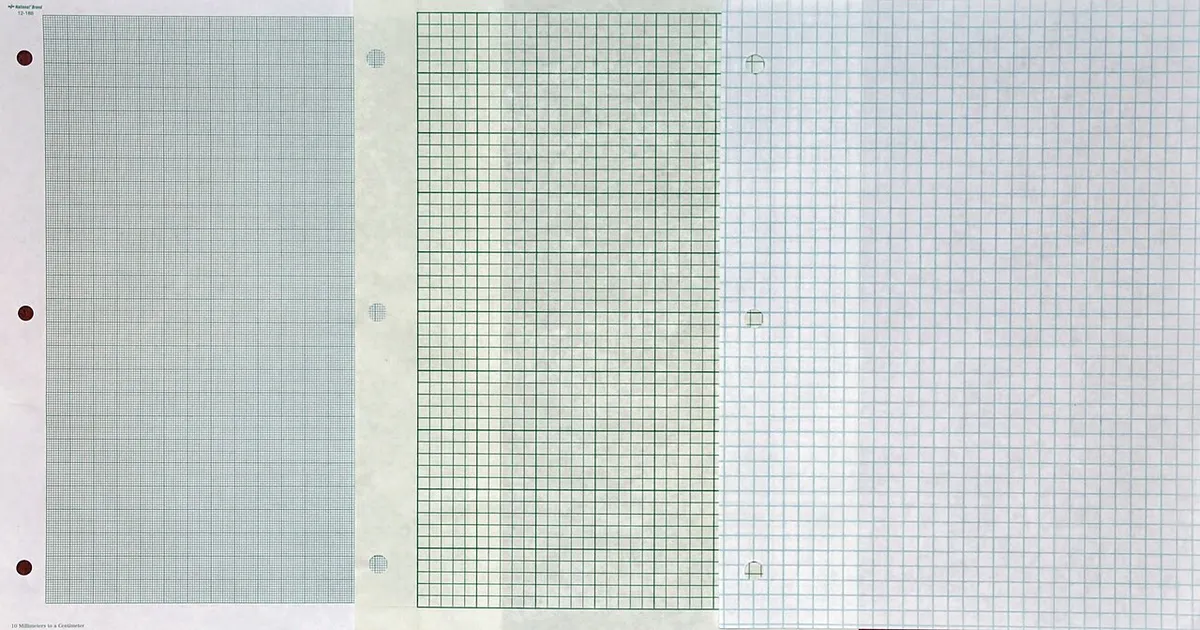
Quick answer
- You can draw a QR code that scans, but you copy it: generate the code first, then reproduce every square exactly on grid paper.
- Keep the message short so the code is small (Version 1 is 21 x 21 squares).
- Fill squares solidly, keep the three corner squares perfect, leave a four-square blank border, and scan as you go.
Draw a QR code that scans in 4 steps
- 1Generate a small code to copyVersion 1 is 21 x 21 squares
- 2Set up a 29 x 29 gridIncludes the four-square quiet zone
- 3Copy it square by squareStart with the three corner squares
- 4Scan to testTry an iPhone and an Android
In this guide
A hand-drawn QR code can really scan, on a chalkboard, cake, mural or cross-stitch. The secret is that you don’t invent the pattern: you generate a code, then copy it square by square.
How a hand-drawn code can work
A QR code is a grid of dark and light squares called modules. A phone finds the three large corner squares, works out the grid, then reads each module as dark or light. Pen, paint or thread all work, as long as each module is in the right place and clearly dark or light.
DENSO WAVE, the company that invented the QR code, lists sizes from Version 1 (21 x 21 modules) to Version 40 (177 x 177). For drawing, you want the smallest code you can get.
Step 1: Generate a small code to copy
- Keep the message short. A short link such as
example.com/hi, or a few words of text, keeps the code small. - Use a generator. Chrome can make one for any web page (see making a QR code for a link). Many generators (for example QRJiffy’s link QR code generator, made by our publisher, DPR Software Labs) also let you choose plain text.
- Check the size. Count squares along one side, excluding the white border: 21 is Version 1, 25 is Version 2, 29 is Version 3.
- Scan the generated code once to check it says what you expect.
Version 1 or 2 is a comfortable size to draw.
Step 2: Set up your grid
- Use squared paper or rule a grid. A 21 x 21 code plus a four-square border on each side needs 29 x 29 squares.
- Make squares big enough to fill neatly. 5 mm squares give a 14.5 cm drawing for a 29-square grid.
- Keep the grid even. Wobbly lines confuse the scanner. Light pencil lines you can erase work well.
Step 3: Copy it square by square
- Start with the three corner squares (finder patterns): each is a 7 x 7 block of a dark ring, a light ring and a dark 3 x 3 centre. Make them exact.
- Work row by row, covering the original with a ruler to keep your place.
- Fill each dark square solidly. Outlined or hatched squares can read as light.
- Leave light squares completely blank. Smudges can flip a module.
- Tick off rows in pencil as you finish.
Step 4: Leave the quiet zone empty
DENSO WAVE specifies a “quiet zone” of four modules on every side with nothing in it. Don’t put a frame, text or doodles there. On a busy background (chalkboard, patterned cake, fabric), paint a solid light rectangle under the code first.
How forgiving is it?
Error correction lets a scanner rebuild the message if part of the code is damaged. DENSO WAVE describes four levels, L, M, Q and H, restoring roughly 7%, 15%, 25% and 30% of the data codewords.
A few small slips may still scan, especially at a higher level. But mistakes in the corner squares and other structural parts can stop the scan entirely. Treat error correction as a safety net, not a plan.
Step 5: Test it
- Scan in even light, without glare from glossy paint or lamination.
- Try an iPhone and an Android phone. See our guides for iPhone and Android.
- If it won’t read, compare row by row with the original. The QR code not scanning checklist covers contrast, size and glare.
Ideas that work well
- Chalkboards and murals: dark squares on a light panel are safer than light on dark. See QR code colours.
- Cross-stitch and knitting: one stitch or block per module maps neatly onto the grid.
- Cakes and cookies: use a stencil cut from the printed code rather than freehand icing.
- Classrooms: a Version 1 code with short text is a good lesson in grids and error correction. The full rules are in the ISO/IEC 18004 standard.
Frequently asked questions
- Is it possible to draw a QR code?
- Yes. A phone doesn't care whether the squares were printed or drawn, as long as each one is in the right place with good contrast. The practical way is to copy a code made by a generator rather than work it out yourself.
- Can you work out a QR code by hand without a generator?
- In principle, since the rules are published in the ISO/IEC 18004 standard, but it involves error-correction arithmetic, masking and many careful steps. For a drawing that just needs to scan, copying a generated code is far more reliable.
- Why won't my hand-drawn QR code scan?
- The usual causes are a missing or shifted square, squares that aren't filled solidly, uneven grid lines, or no blank margin around the code. Check the three big corner squares first, then compare row by row with the original.
- Can a QR code be forged by copying it?
- Copying reproduces exactly the same data, so a copied code works just like the original. That's why scammers can print copies or stick their own codes over real ones, and why you should check the link a phone shows before opening it.