How to create a QR code in Canva (step by step)
Add an editable, trackable QR code to any Canva design with the QRCodeStack app, or use Canva's own QR tools. Real screenshots of every click.
Add LearnQRCode as a preferred source on Google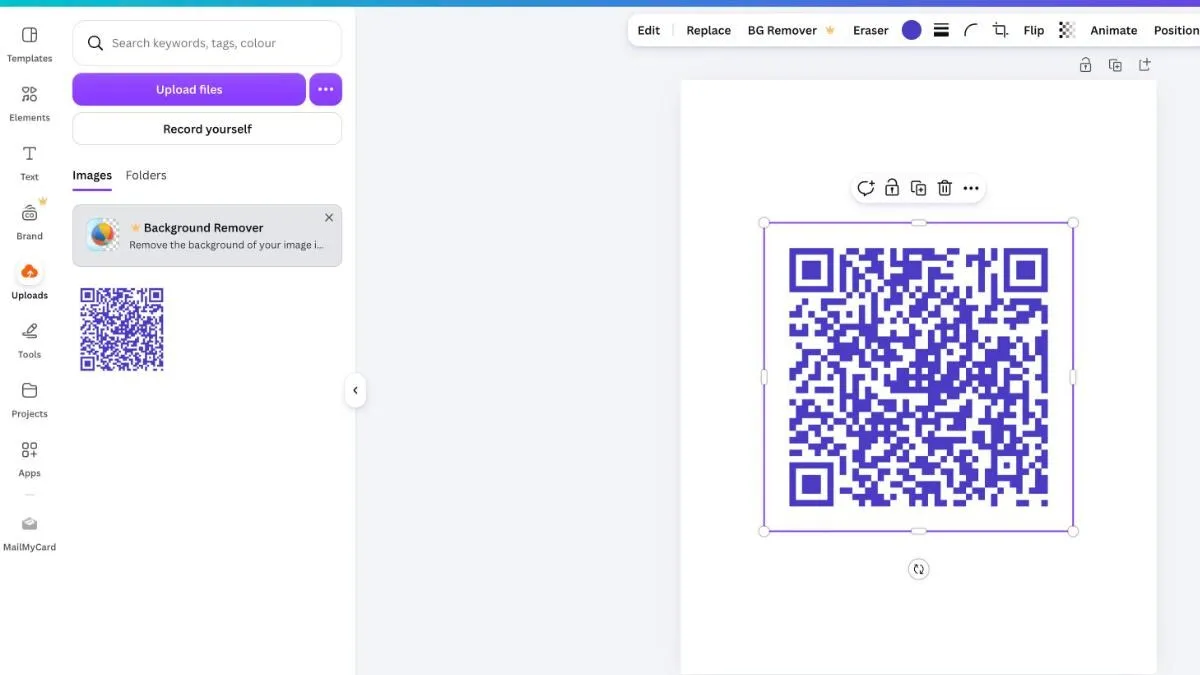
Quick answer
- In the Canva editor, open Apps, search qrcodestack, open QR-Code Generator and connect your QRCodeStack account.
- On the Create tab, choose a type, paste your link, then select Create & add to design. The code drops onto your page and you can change its link later.
- Prefer Canva's own tools? Apps > search QR code > Static QR codes. Keep any code at least 2 × 2 cm and test it before printing.
Add a QR code in Canva in 4 steps
- 1Apps > search qrcodestackOpen QR-Code Generator
- 2Connect your QRCodeStack accountFirst time only
- 3Paste your linkOn the Create tab
- 4Create & add to designResize, then test with a phone
In this guide
You can add a QR code to a Canva design without leaving the editor. The steps below use the QRCodeStack app for Canva, which makes codes you can edit and track after printing. Canva’s own QR tools and uploading a code from another generator are covered after it. Every screenshot is from the real Canva editor, with the place to click marked in red.
Method 1: The QRCodeStack app in Canva
Find and open the app
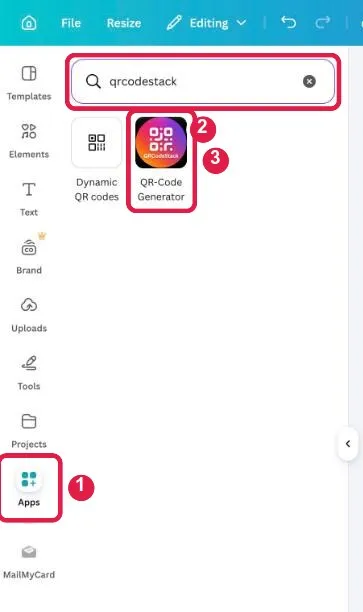
- In the Canva editor, select Apps in the left sidebar.
- Search for qrcodestack.
- Select QR-Code Generator (the pink QRCodeStack icon).
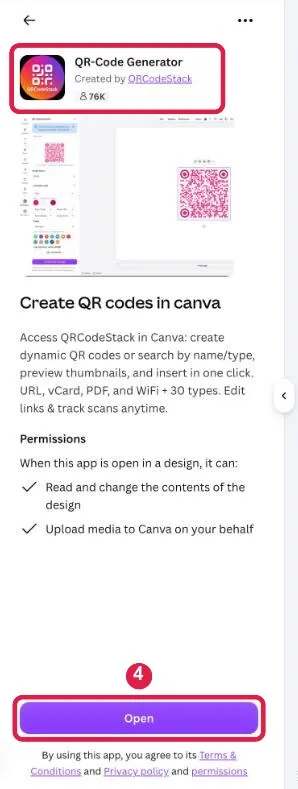
- Canva shows the app’s details, “Created by QRCodeStack”. Select Open.
Connect your QRCodeStack account (first time only)
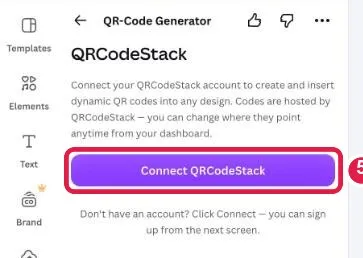
- Select Connect QRCodeStack. No account yet? Click Connect anyway: you can sign up on the next screen.
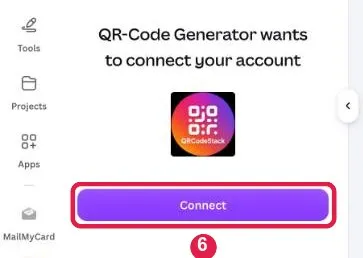
- Canva asks to confirm: select Connect.
- A QRCodeStack window opens. Sign in with Continue with Google, or with your email and password (or Sign up free).
- Select Authorize. Canva will then be able to view your QR codes (name, type, image) and insert them into your designs, and the window returns you to Canva.
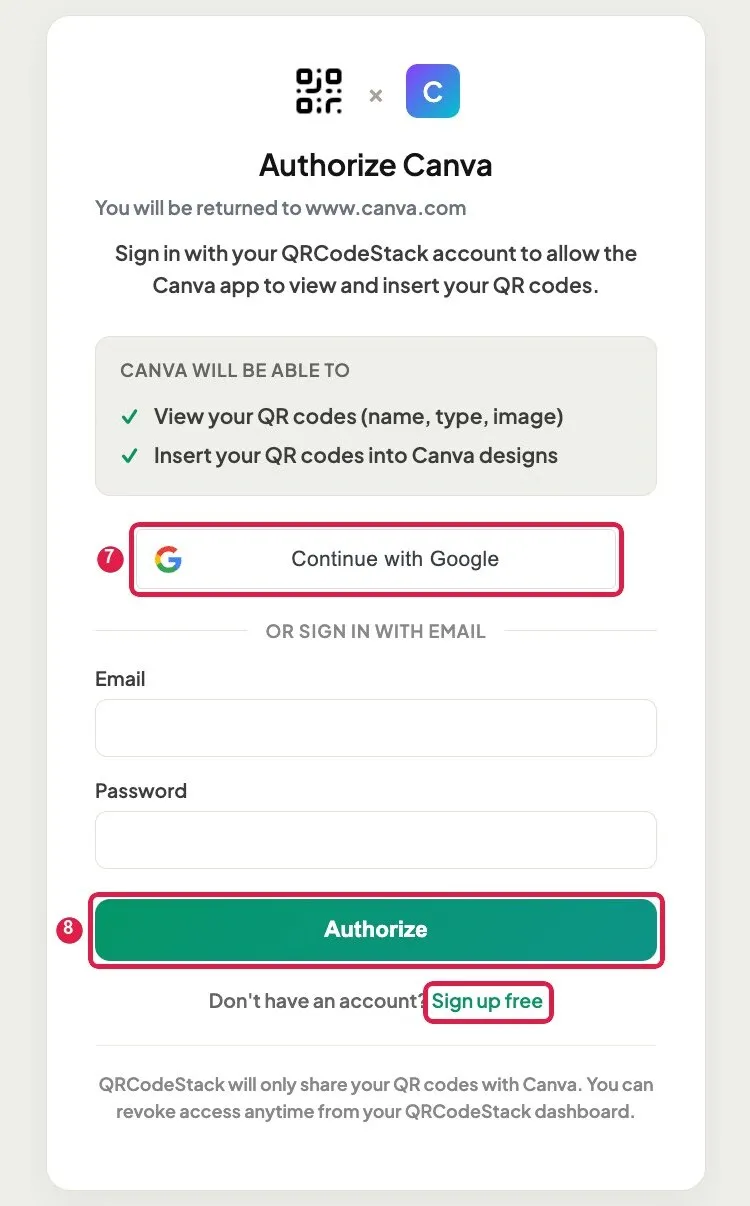
If Canva shows a “timed out” message after signing in, select Connect QRCodeStack again: it goes straight through once you’re signed in.
Create the code and add it to your design
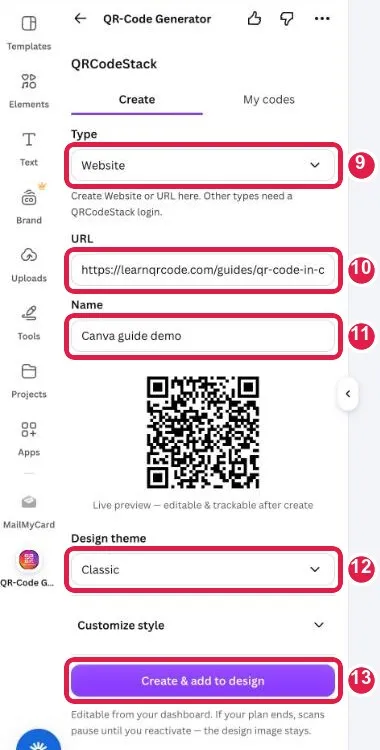
- On the Create tab, choose the Type. Website is the default; the app notes that other types need a QRCodeStack login.
- Paste your link into URL.
- Optionally give it a Name so you can find it later. A live preview appears.
- Pick a Design theme, or open Customize style.
- Select Create & add to design.
- The code lands on your page, selected. Drag a corner to resize it.
- The panel switches to My codes, which lists every code in your QRCodeStack account.
- To reuse a code in another design, select Add next to it.
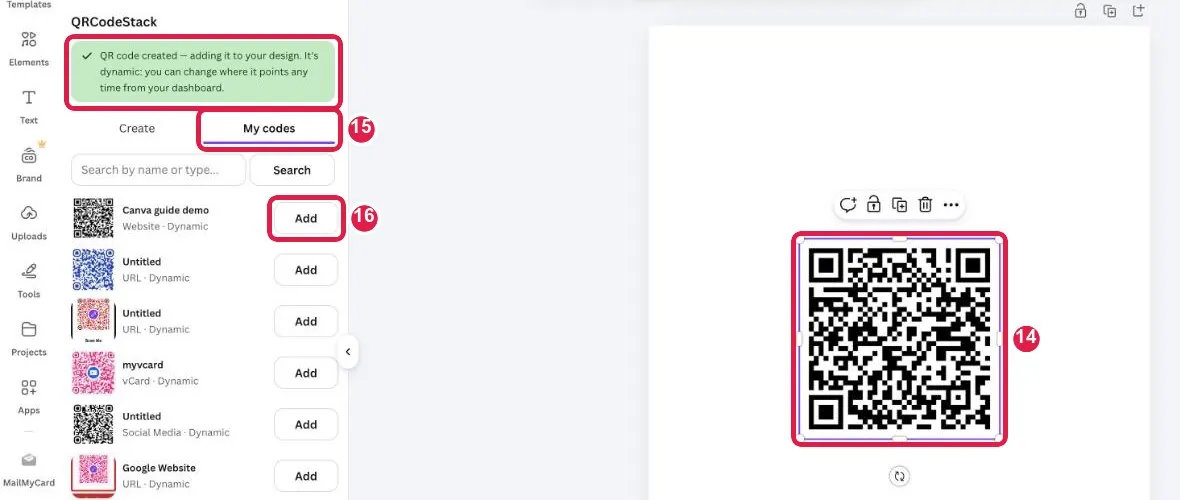
The app’s confirmation says the code is dynamic: you can change where it points any time from your QRCodeStack dashboard, without replacing it in the design. It also notes that if your plan ends, scans pause until you reactivate, while the image stays in your design.
Method 2: Canva’s own QR code tools
Canva has two built-in tools: Static QR codes (a fixed link, no Canva logo, same features on every plan) and Dynamic QR codes (an editable link, with the Canva logo on Free and Pro plans and extras on Business, Enterprise and Nonprofit).
- Select Apps in the left sidebar.
- Search for QR code.
- Choose Static QR codes (or Dynamic QR codes).
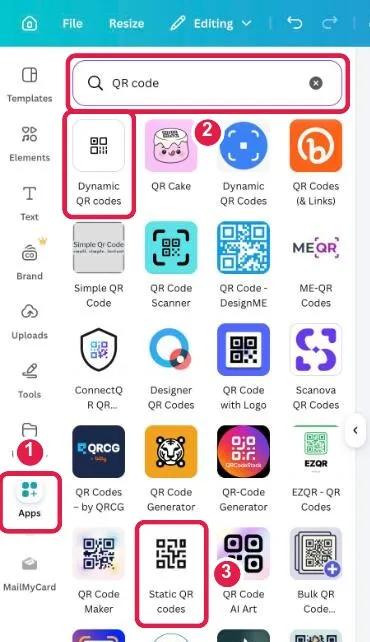
- Select Open, paste your link into the URL field, optionally change the colours and margin, then add the code to your design.
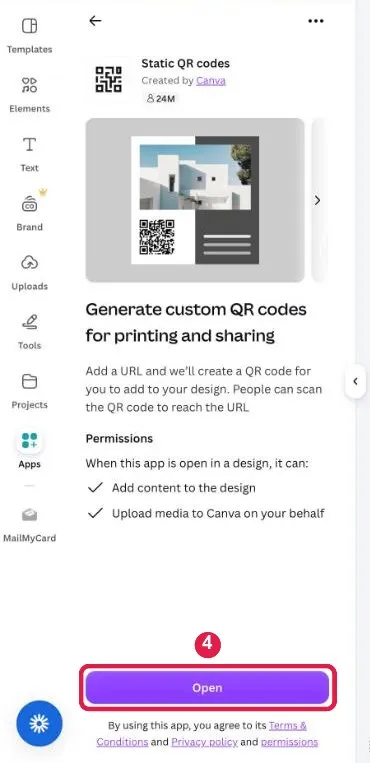
You can also start from Elements: search “QR code” and choose Create static or Create dynamic.
Method 3: Upload a code made with another generator
Any QR generator works: download the code as PNG or SVG, then add it to Canva like any image. This example uses QRJiffy’s link QR code generator, which is made by our publisher, DPR Software Labs.
- Paste your link into the Link (URL) field and pick a style.
- Select Download PNG, or SVG for the sharpest print. QRJiffy asks for an email address before the first download (no password).
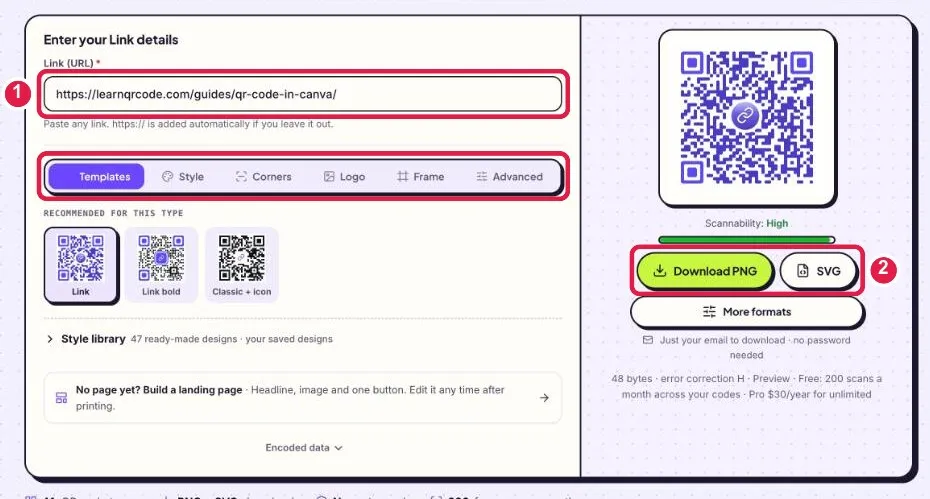
- In Canva, select Uploads in the left sidebar.
- Select Upload files and choose the file you downloaded.
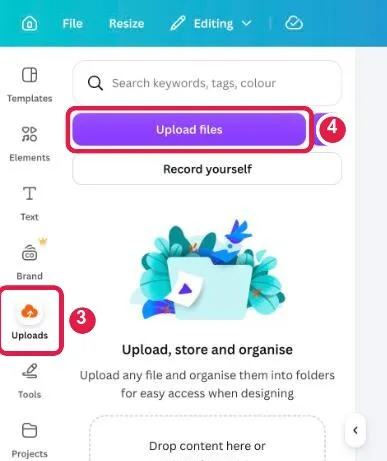
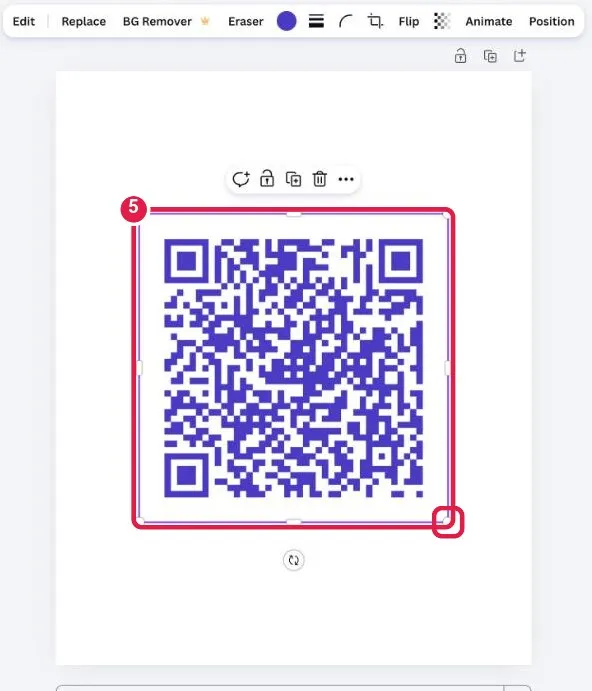
- Click the uploaded image under Images to add it, then drag a corner handle to resize it.
Which method should you use?
| QRCodeStack app | Canva static | Canva dynamic | Upload a file | |
|---|---|---|---|---|
| Change the link later | Yes, from the QRCodeStack dashboard | No | Yes | Depends on the generator |
| Canva logo on the code | No | Never | On Free, Pro and Education | No |
| Account needed | QRCodeStack account | Canva only | Canva only | Depends on the generator |
| Reuse codes across designs | Yes, from My codes | No | Yes | Re-upload or reuse the image |
Make sure it scans
Canva’s advice, which applies to any code:
- Size: no smaller than 2 × 2 cm (0.79 × 0.79 in); bigger for posters scanned from a distance. See our QR code size guide.
- Contrast: dark code on a light background, no transparency. See QR code colours.
- Clear space: leave blank space around the code and keep text and graphics off it.
- Short links scan more reliably.
Scan the finished design on screen with two different phones, then print one test copy at the real size. If it won’t read, see why a QR code is not scanning, and for print files, how to print QR codes.
Frequently asked questions
- Can I change the link of a QR code after I add it in Canva?
- Yes, if it's a dynamic code. Codes made with the QRCodeStack app are dynamic: the app says you can change where they point any time from your QRCodeStack dashboard. Canva's Dynamic QR codes can be edited too. Canva's Static QR codes can't be changed after creation.
- Do I need an account to use QRCodeStack in Canva?
- Yes. The app asks you to connect a QRCodeStack account, and you can sign up from the connect screen, with Google or with email.
- Do Canva QR codes expire?
- Canva says its static codes keep their link for good, and its dynamic codes only expire if you set an expiry date (a Business, Enterprise or Nonprofit feature). For QRCodeStack codes, the app notes that scans pause if your plan ends, until you reactivate.
- Why is there a Canva logo on my QR code?
- Canva's own dynamic QR codes include the Canva logo by default on Free, Pro and Education plans. Canva's static codes never include it, and neither do codes added from the QRCodeStack app or uploaded from another generator.