How to make a QR code in Google Docs (with screenshots)
Make a QR code that opens your Google Doc, or put a QR code inside a Doc. Real screenshots show where to click in Share, Insert and the generator.
Quick answer
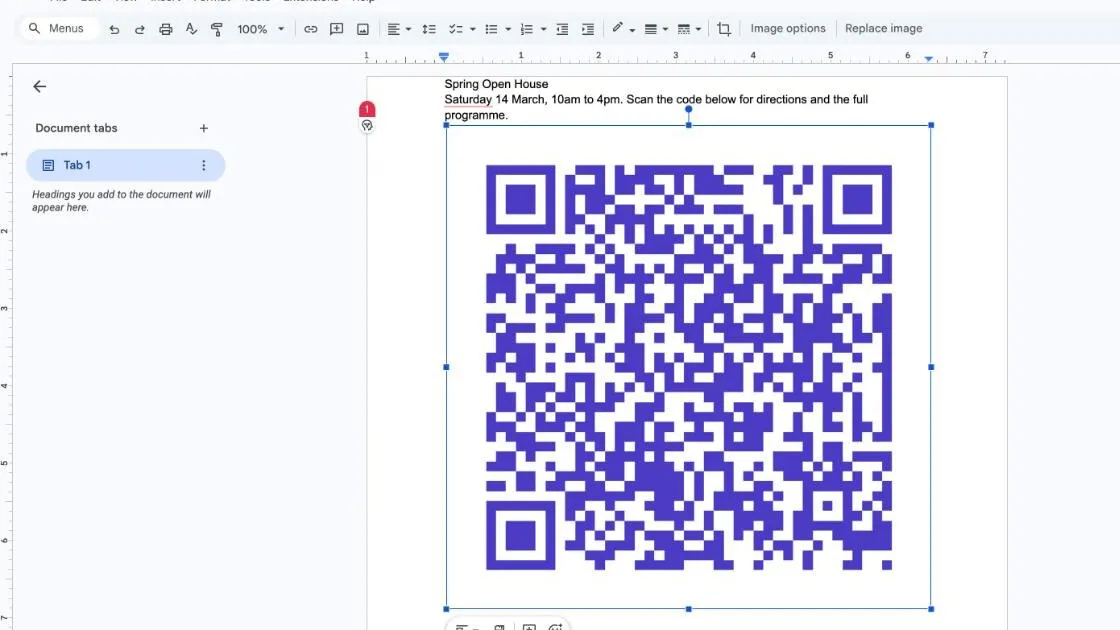
- Google Docs has no QR code button. Make the code in a QR generator, then add it with Insert > Image > Upload from computer.
- To make a code that opens a Doc: Share, set General access to Anyone with the link, select Copy link, then paste the link into a QR generator.
- Drag a corner of the image to resize it, and test the code with a phone before you share or print.
QR code in Google Docs in 3 steps
- 1Share > copy the Doc's linkSet Anyone with the link
- 2Make the code in a generatorDownload PNG
- 3Insert > Image > UploadThen resize from a corner
Google Docs doesn’t have a QR code button, but adding one takes a minute. There are two jobs people mean by “a QR code in Google Docs”: a code that opens your Doc (for a poster or handout), and a code inside your Doc (for a flyer or menu you’re writing). Both are below, with the place to click marked in red on real screenshots.
Make a QR code that opens your Google Doc
Get the Doc’s link
- Open the Doc and select Share at the top right.
- Under General access, select Restricted to open the menu.
- Choose Anyone with the link so people who scan can open it without an invite. Keep the role as Viewer unless they need to edit.
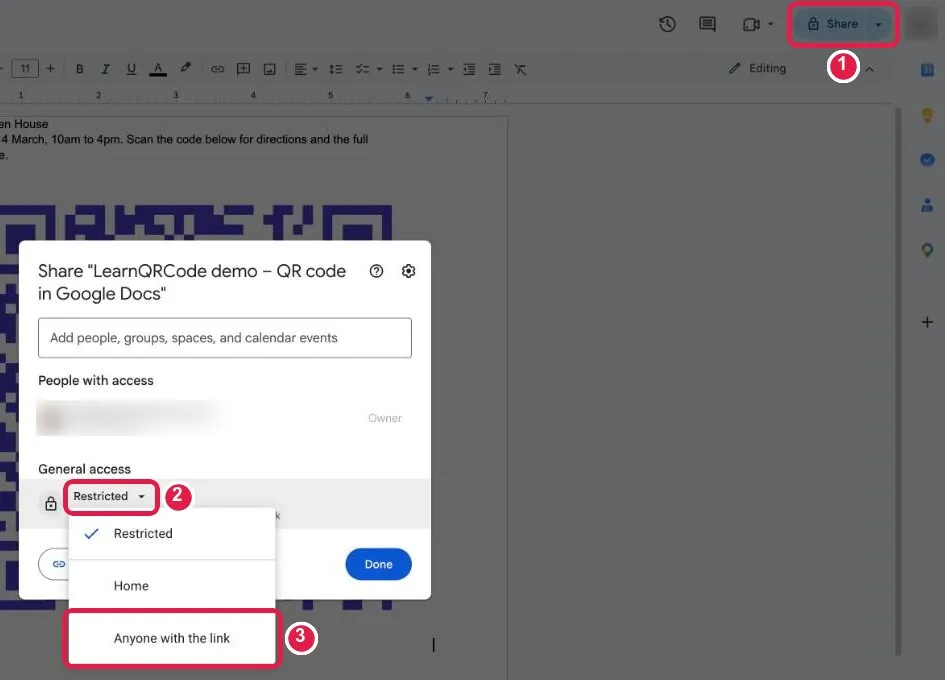
- Select Copy link, then Done.
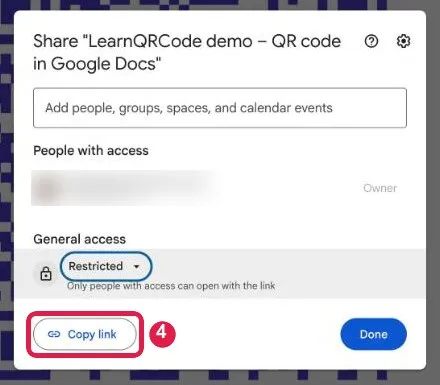
If you leave access as Restricted, scanners who aren’t on the share list will see a request-access page instead of your Doc.
Turn the link into a QR code
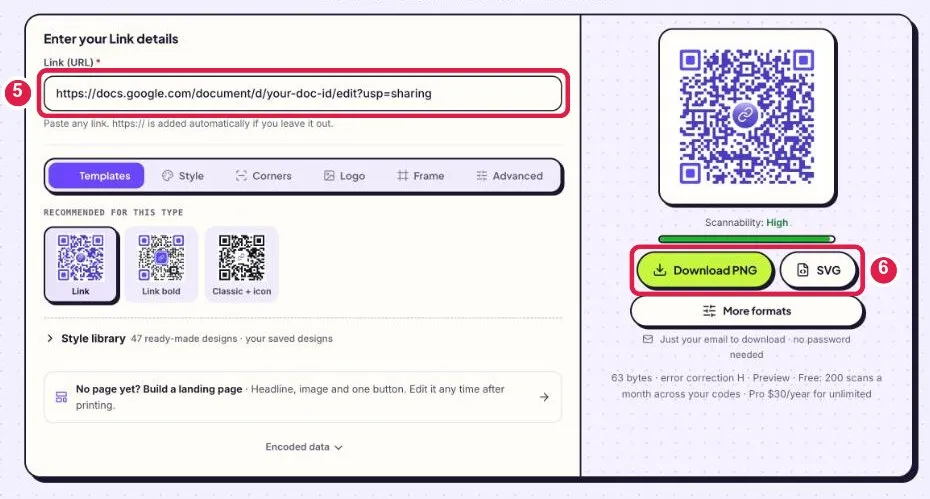
These screenshots use QRJiffy’s link QR code generator, which is made by our publisher, DPR Software Labs. Any generator that accepts a link works the same way.
- Paste the Doc’s link into Link (URL). The preview updates straight away.
- Select Download PNG for screens, or SVG for print. QRJiffy asks for an email address before the first download (no password).
Put a QR code inside a Google Doc
Once you have the QR code image (from the steps above, or any QR generator), add it like any picture. These are the steps in Google’s own help for inserting images:
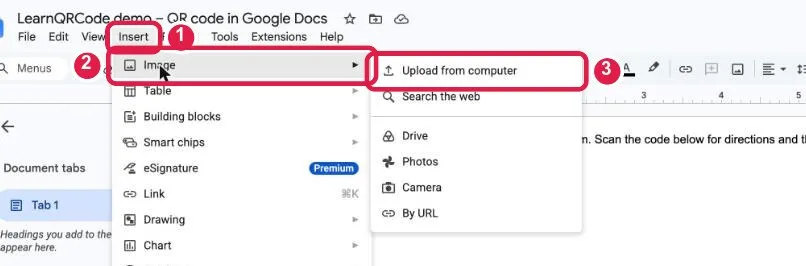
- Click where the code should go, then open the Insert menu.
- Hover over Image.
- Choose Upload from computer and pick the PNG. (Drive and By URL also work if the image is stored there.)
- Click the code to select it, then drag a corner handle to resize it. Corners keep it square; don’t stretch it from a side.
- Image options lets you set an exact size, rotation or colour adjustments. Leave colours alone so the code keeps its contrast.
- Use the small toolbar under the image to choose In line or Wrap text, so your text flows around the code.
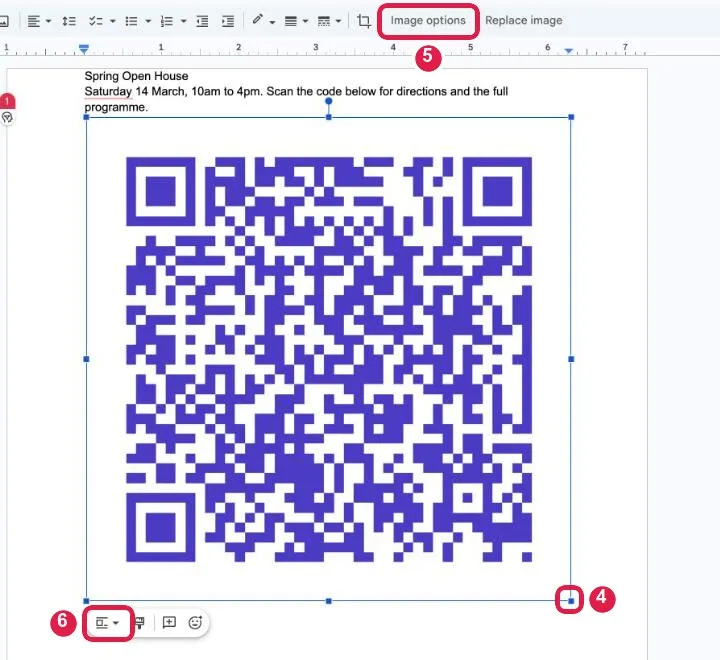
Google notes that the wrap options aren’t available in pageless documents; switch the Doc to pages format (File > Page setup) if you don’t see them.
Before you share or print
- Scan it from the screen with your phone and check it opens the right Doc, without asking for access.
- Print a test copy at the real size and scan that too. See how big a QR code should be and how to print QR codes.
- Keep contrast: dark code on a white background. See QR code colours.
- Don’t delete or unshare the Doc while the code is in use: the code points at that exact file.
Making a code for a form or a file instead? See QR codes for Google Forms and QR codes for PDFs. For Word, see how to put a QR code in Microsoft Word.
Frequently asked questions
- Does Google Docs have a QR code generator?
- No. Google Docs has no built-in QR code tool. Make the code with a QR code generator, or with Chrome's Create QR code option for a page you have open, then insert the image into your Doc.
- Why does my Google Doc QR code say I need access?
- The Doc is still Restricted, so only people you added can open it. In Share, change General access to Anyone with the link, or add the people who will scan it.
- Will the QR code still work if I edit the Doc?
- Yes. The code holds the Doc's link, and the link stays the same when you edit the text. It stops working if you delete the Doc, move it to the bin or change its sharing back to Restricted.
- How big should the QR code be in my document?
- For print, keep it at least about 2 × 2 cm and test a printed copy. For a document people read on screen, make it big enough to scan from a second device.